
When you need to combine multiple PDF files into one, it’s common to install a program like Adobe Acrobat or download some tool from the internet—which can be annoying if you just want to finish the task quickly.
With PDFNavi’s PDF merge feature, you can merge PDFs instantly without installing anything, then download the finished file right away. Below, I’ll walk you through how to use it and what’s happening behind the scenes.
How to Use PDFNavi’s PDF Merge Feature
As long as the files are PDFs, you can merge them regardless of what’s inside. The whole process takes just a few simple steps.
Upload Your PDF Files
On the PDF merge page, you’ll see an option like “Select files.” Just drag and drop all the PDFs you want to merge into that area—whether it’s 2 files, 3 files, or more.
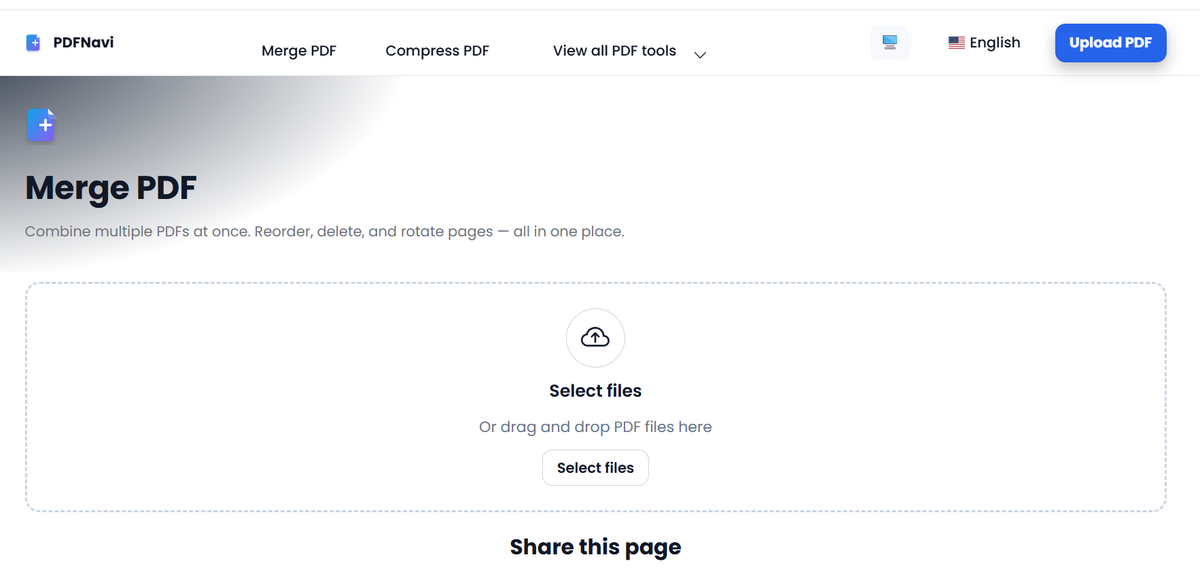
You can also click the Upload button and choose files from your file browser. Selecting and uploading multiple PDFs at the same time works perfectly, and they’ll appear on the page immediately.
And even if your PDFs are large, the merge still works smoothly—so you don’t need to worry too much about file size.
Reorder Pages, Rotate Pages, or Delete Pages
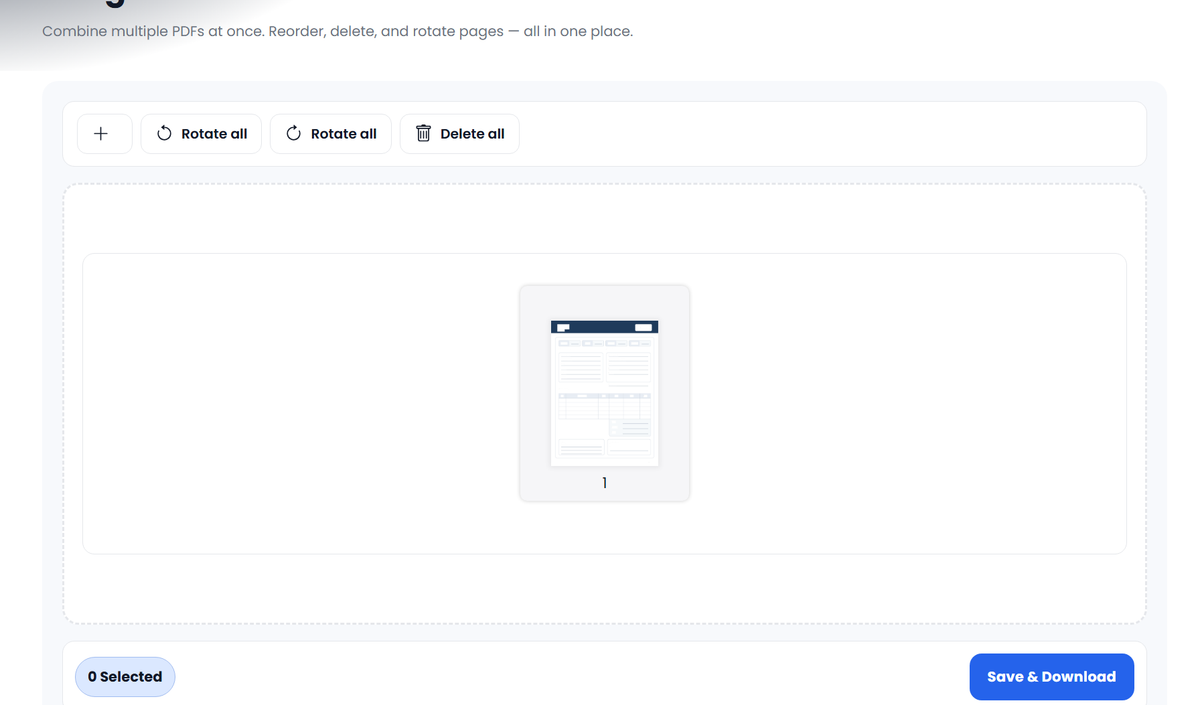
After uploading, you’ll see every page from every PDF displayed as thumbnail previews. From here, you can edit the final output by:
- Reordering pages
Click and hold a thumbnail, then drag and drop it to the position you want. The order updates instantly.
For example, if you want to change chapter order or insert pages from another document in the middle, just drag the thumbnails into place. - Rotating pages
If a page needs to be landscape (or just rotated), click the rotate left/right icon at the top. The change is applied immediately.
You can also click a thumbnail to preview the page larger before finalizing. - Deleting pages (when you don’t need certain pages)
If there are pages you don’t want included in the final PDF, select the thumbnail and click the delete icon.
This lets you merge only the pages you actually need.
Download the Merged PDF
Once you’ve finished reordering, rotating, and deleting pages, just click Save & Download.
PDFNavi will merge everything exactly as you edited it and download the final combined PDF to your computer.
How Does PDFNavi Actually Merge PDFs?
At first glance, it may look like a simple flow—upload → rearrange → save. But internally, the system works by handling PDFs at the page level, then rebuilding them into a brand-new file.
Pages Are Extracted and Displayed Individually
The moment you upload your PDFs, the server extracts pages one by one and prepares them so they can be displayed and edited in the browser.
These pages aren’t just images—they’re treated as structured data, stored in an ordered list.
Each page is managed as a “page object” with key information like:
- a unique page ID
- page dimensions
- rotation angle
- the page’s actual PDF data
This is what makes live editing possible.
Editing Doesn’t Rebuild the PDF Every Time
The key point is that the preview you see during editing is not constantly being regenerated as a new PDF whenever you reorder or rotate something.
Instead:
- Reordering updates the order of the page objects in the list
- Rotating updates the rotation value for that page
- Deleting removes that page from the list so it won’t be included later
In other words, most of what you’re doing is simply editing the page list, not rebuilding the entire PDF repeatedly.
The Actual Merge Happens When You Click Download
Once you click Save & Download, the real merge process runs.
At that moment, the merge function takes the current page list (with your final order, rotations, and deletions), stitches the pages together in sequence, generates a new single PDF, and immediately delivers it as a download.
Wrap-Up
That’s a quick overview of how to merge PDFs in PDFNavi—both the step-by-step usage and the core logic behind how it works. The biggest advantage is simple: no installation, no complicated process, and anyone can do it in seconds. Use it anytime you need to merge PDFs fast.